
To edit a food item first click the item which you want to change so that it is selected. This will make the Edit item button, which you'll find at the top of the window in the icicles bar change from greyed-out (disabled) to not greyed-out (enabled); now click the button and an Edit Item dialog box will appear.
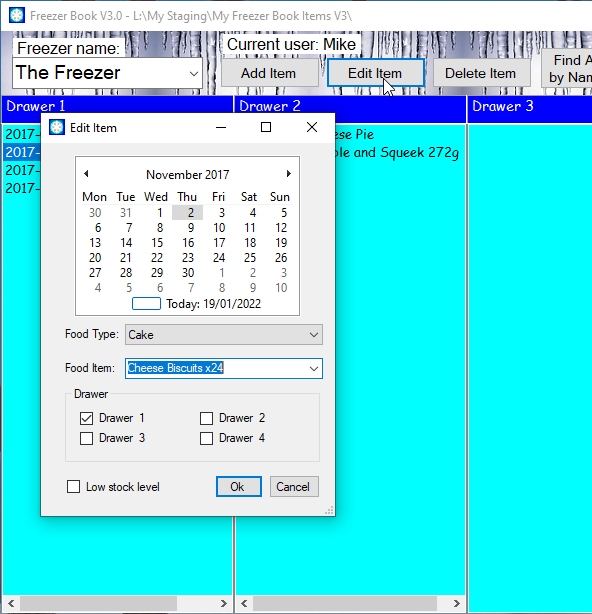
You may notice that this form is very similar to the Add item dialog box except that its title is Edit item and all of the form is filled in with the original food item's details. All of the facilities provided by the Add item dialog are provided here so capitalisation is the same, etc., etc.. The only thing that is different is that the suggestions are not automatic but they are still available - just click anywhere on the Food Item box and all of the items which you have ever typed in will be shown in a drop-down list. Now you can make any corrections you need: you can change the date, correct anything which may be wrong with the description or change the food type. You can also change the drawer but it may be easier to Move the item.
There is one addition thing which you can control on the Edit item form and that is the Low stock level check box. For example if you have taken some frozen peas from the freezer and you notice that there are not many left then you can edit the peas item and check this box. To see how to use this facility have a look here.
Note It may be wise to check, however, that you don't have a new bag of peas in the freezer.
Click here to return to where you were.
Note. Where ever you see this symbolhover you mouse pointer over it to get more information.